Best Of
Interactive Card legends
Hello,
Visuals like the 'Line and Nested Bar' chart have the useful ability to display four metrics simultaneously, while also allowing users to expand the card and interact with the legend. By clicking on legends while the card is expanded, users can hide certain metrics from the chart, making analysis more clear if needed.
It would be great if the ability to interact with and hide certain metrics of the legend was available at the App level. It would be beneficial for our users to retain all features and interactivity of the card at the App level. Currently, this feature is available on most other cards.
Thank you!
Indicator on dashboards to visually show user that a card is new/has been updated
Often times users miss updates on pre-existing dashboards or they do not realize a new card was added entirely. I would love a way to configure a "pop-up" message that a user must click out of the next time they log in (similar to how DOMO pushes new features available). Within the message I would like to be able to give minor detail about changes and which cards they apply to.
Additionally, it would be great if there was some type of indicator we could apply to cards that are new or update, right on the dash itself. Maybe outline the card in green with a "NEW" or "UPDATED" icon. Once a user mouses over that area of the dash, the indicator will go away on their next view of the dash.
 klifford
Add which dataset triggered the Magic ETL to the execution details
Something really helpful is to add which dataset triggered a run on the details view of a Magic ETL run. A lot of times flows have many triggers and being able to quickly figure out which one can be valuable to make sure that run has the data needed or if it has ran due to some other dataset, etc.

Branching Forms
I think this is called different things in other platforms (branching, dynamic, non-linear, conditional logic). I would like for users to be able to go to different sections of a form depending on their response to the previous questions.
 Jessary
html table
HTML tables looks great, but no scroll nor filter makes it not to be user friendly .
Would be good to add those options.
Work Smarter, Not Harder - Introducing the Domo Toolkit Chrome Extension
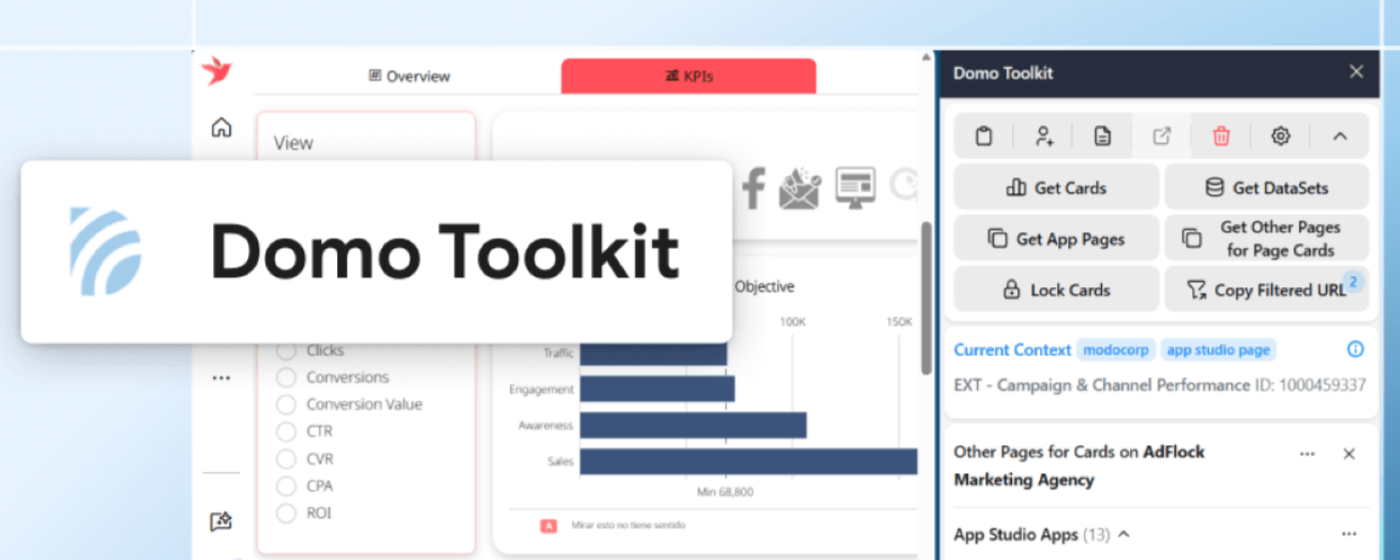
Stop wasting time navigating menus, managing hundreds of identical browser tabs, copying dataset IDs from the URL, and constantly clearing your cookies.
Domo Toolkit is designed for the people who live inside Domo every day—administrators managing hundreds of objects, consultants jumping between client instances, and power users building on the platform. Every feature is built to save clicks, reduce context-switching, and surface information that Domo's native UI buries. Whether you're creating, updating, troubleshooting, auditing, or cleaning, Domo Toolkit puts the tools you need one click away.
Installation


Disclaimer
This extension is an independent, community-developed project. Domo, Inc. has no responsibility for its functionality or performance or for any consequences arising from its use.
Features
Context Detection
Automatically detects the Domo object you're viewing - pages, cards, datasets, dataflows, app studio pages, workflows, alerts, and 100+ other object types. The extension:
- Identifies the object and fetches metadata from the Domo API
- Detects card modals and resolves parent objects for nested types (e.g. app studio pages)
- Detects selected code engine and form actions inside workflow editors
- Updates the tab title with the object's name
- Provides one-click access to the object's full JSON definition, with epoch timestamps annotated as human-readable dates and user IDs annotated with display names
Automatic 431 Error Resolving
Handles Domo's "Request Header Fields Too Large" errors with three cookie clearing modes:
- Auto (default) - Detects 431 errors, clears cookies (preserving your last 2 active instances), and refreshes the page automatically
- Preserve - One-click clearing that keeps your last 2 instances
- All - Clears all Domo cookies while leaving other sites and history intact
One-Click Actions
- Copy ID - Copy the current object's ID. Long-press for related IDs like stream ID (datasets) or app ID (app studio pages). Keyboard shortcut:
Ctrl+Shift+1(Cmd+Shift+1on Mac). - Share With Self - Grant yourself access to pages, studio apps, and custom app designs.
- Activity Log - View activity log records for the current object. Long-press for advanced options: view activity for all cards on the current object, all pages containing those cards, or all child pages.
- Clipboard Navigation - Click this button to read your clipboard, identify the Domo object only by its ID on your clipboard, and navigate directly to it. Works with any Domo object ID copied from anywhere - a card, dataset, spreadsheet, Slack message, etc. For objects that don't support navigation, detailed information is displayed in the side panel instead.
- Delete Current Object - Delete beast modes, appdb collections, workflows, pages/app studio pages and all their cards, and dataflows and all their outputs. Includes confirmation dialog and child page safety checks.
Data Discovery
Opens in the side panel for persistent exploration without losing your place.
- Get Cards - Lists every card on a page, app studio page, worksheet page, report builder page, dataset, or dataflow outputs. For pages, forms and queues are included and separated from cards.
- Get Card Pages - Shows where cards on an object live. For pages, shows all other pages not including the current page that contain cards that also exist on the current page. For datasets and dataflows, shows all pages and app studio pages containing cards that use the dataset or dataflow outputs as a source.
- Get Child Pages - For pages, shows all child and grandchild pages.
- Get DataSets - Shows datasets for an object, including inputs and outputs datasets for dataflows, dependent views for datasets, and all datasets used in cards on a page or app.
- Get DataSets Used in View - For dataset views and datafusions, see the underlying source datasets that feed into the view.
All discovery lists support applicable actions like open all, copy ID, share with self, open lineage, open in views explorer, and remove from page. Items are grouped hierarchically or categorically with expand/collapse, counts, direct links, and IDs on hover.
Card Error Tracking
Card API errors are automatically captured as you browse. Click the Card Errors button to view them in the side panel with full response details. Errors are tracked per tab and cleared when you navigate away from a card. View error count at a glance, expand individual errors to see the full JSON response, and clear all errors with one click.
Object-Specific Actions
- Lineage - Open a full-page lineage graph for datasets and dataflows. Traces upstream and downstream dependencies with dataset previews and dataflow tile operations directly in the graph. Supports dark mode.
- Copy Filtered URL - Copy URL with all applied filters on a card, page, or app studio page (Pfilters).
- Export Data - Export card data in CSV or Excel format, including applied filters (can be done from a card modal!). Export code engine package versions as JavaScript/Python files.
- Data Repair - Open the hidden data repair tab for any dataset.
- Update Owner - Change ownership of alerts and workflows with a searchable user picker and a "Set to Self" shortcut.
- Update DataFlow Details - Edit a dataflow's name and description without creating a new version.
- Update Code Engine Versions - Bulk update workflow code engine actions to the latest version in a single click, without unmapping inputs and outputs.
- Lock Cards - Lock all cards on a page, app studio page, dataset, worksheet, report builder report, or all dataflow outputs.
- Set DataSet Schedule to Manual - Set a dataset's schedule to manual.
- Fix Empty String Filters - Remove empty string default values from "contains" quick filters on cards, so null values display when no value is entered instead of being filtered out.
Custom Favicons
Customize favicons per Domo instance using regex-based rules:
- Instance Logo - Use the instance's own logo as the favicon
- Colored Domo Logo - Custom background color on the Domo logo
- Colored Stripes - Add a colored stripe to the top, right, bottom, or left edge
- Regex Patterns - Match instance subdomains with flexible patterns
- Priority Ordering - Drag-and-drop rule ordering
Side Panel & Popup
- Popup - Click the extension icon for quick access
- Side Panel - Persistent panel alongside the page for data discovery, with collapsible actions. Opens automatically from the popup when displaying discovery results.
Both show the current context (instance, object type, object ID) and update as you navigate.
Settings
- Theme - System, light, or dark mode
- Default Domo Instance - Set your go-to instance for clipboard navigation from non-Domo sites
- Cookie Clearing Behavior - Choose between auto, preserve, or all modes
- Favicon Rules - Rule editor with pattern matching, effect selection, color picker, and drag-and-drop reordering
Supported Object Types
Pages, cards, datasets, dataflows, app studio apps (and their pages), worksheets (and their pages), workspaces, users, groups, alerts, workflows (including versions, executions, triggers, and actions), code engine packages (and versions), pro-code apps, beast modes, variables, access tokens, appdb collections, approvals, approval templates, jupyter workspaces, filesets, files, forms, governance toolkit jobs and dozens more.
Privacy
- Only runs on
.domo.comdomains - Uses Domo's existing authenticated session - no additional login required
- No data leaves the browser; no external servers are contacted
- Settings sync via Chrome's built-in storage
- Domo data is never read, stored, or sent off-device
See the full Privacy Policy for details.
Contributing
Interested in contributing? See CONTRIBUTING for the tech stack, architecture, development setup, code conventions, and key patterns.
Issues & Feedback
Found a bug or have a feature request? Open an issue.
 brycec
Announcing the Datasource Swapper: Move your existing Cards, Views, and ETLs to new datasets in bulk
Hi everyone,
I am excited to announce the release of the Datasource Swapper! Whether you are building new datasets because you are moving to a new data provider, transitioning away from materialized datasets in favor of Cloud Amplifier, or dealing with forced changes caused by vendor API deprecations, this tool was created to help save you hours of tedious manual updates to move your existing content to your shiny new datasets.
You can read more about this custom tool and get a step-by-step guide to create and run this in your instance here:
The Datasource Swapper is designed to accelerate large-scale migrations by allowing you to re-map content in bulk. Instead of opening every dataset yourself and updating each piece of content, you can provide a simple mapping dataset to this tool and let it handle the heavy lifting.
Key Functionality & Features:
- Bulk Dataset Swapping: Automatically update the input datasource for Cards, Dataset Views, and Magic ETL Dataflows across your Domo instance.
- Mapping-Driven Automation: Uses DomoStats and a simple "Old ID to New ID" mapping to identify and update all dependent assets for any given dataset in one go.
- Proactive Schema Validation: Before committing changes, the tool checks for missing columns or data type mismatches in the target dataset, allowing you to skip problematic pairs or proceed with full visibility.
- Flexible Deployment: Choose the environment that fits your workflow — deploy it as an integrated Pro-Code App using CodeEngine or utilize the standalone JavaScript-based CLI tool for a local experience.
This tool is perfect for Domo Instance Administrators who are tasked with maintaining instance health during structural data changes. Because it requires the ability to deploy CodeEngine packages, create custom Pro-Code apps, and modify instance-wide content, it is most effective when run by an Administrator or a user with elevated permissions and widespread access to update content.
You can dive into the step-by-step implementation guide and access the code here:
Happy migrating!

Drilldown stopped working on Beast Mode field with HTML (previously worked)
I have a table card where one of the columns is a Beast Mode calculation that outputs HTML (using concat( '<div title=' ,`Internal ID` ,'>',Job Number,'</div>')
Previously, this field worked as both:
- a formatted HTML display column to just show the Job Number, and
- the trigger for a drill path to a specific Internal ID (because just drilling down by the Job Number itself would bring more records than desired - I want to be able to drill down to a specific ID that the row in my table corresponds to. I do NOT want to display that ID in the table as it doesn't mean anything to the user.
Without any intentional changes to the Beast Mode or drill configuration, the drilldown has stopped working when clicking this column.
Current behavior:
- The HTML renders correctly in the table (doesn't show the <div> in the table, just the Job Number that I wanted to display)
- Clicking the cell no longer drills down how it used to - it just shows No Records.
What I’ve checked:
- Drill path is still configured correctly
- Dataset and fields have not changed
- Other (non-HTML) fields still drill as expected
Question:
Has there been a change in how Domo handles click interactions on HTML-rendered Beast Mode fields?
Is it no longer supported to use the same Beast Mode column for both HTML display and drill interaction?
vliang0
Attach a PDF to an Email
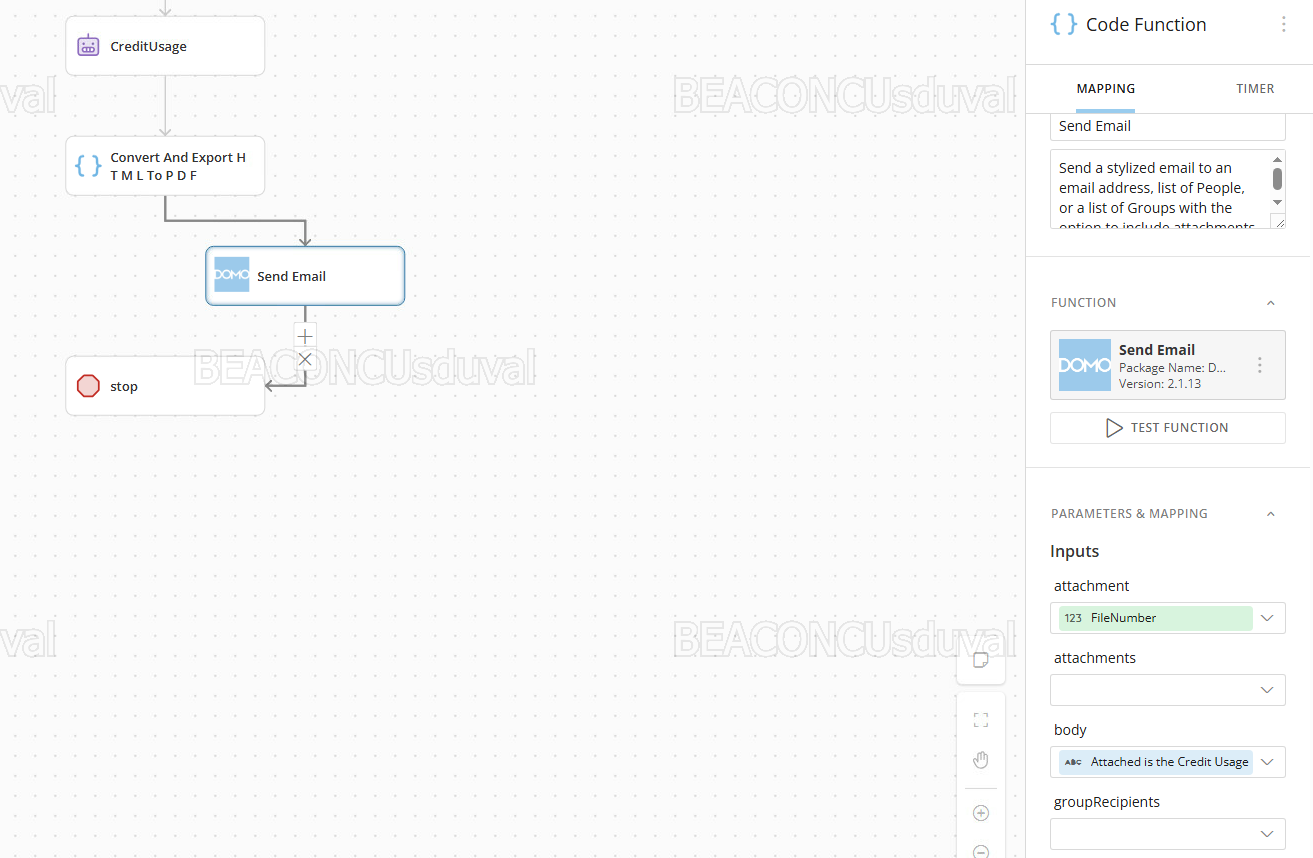

I created a custom function to create a PDF file based on some text being passed to it from an AI agent output. The create file function works correctly (returns a file id) but when I go to attach to an email, I receive a "null" attachment, not the file name or format I was expecting.
Any suggestions?
srduval
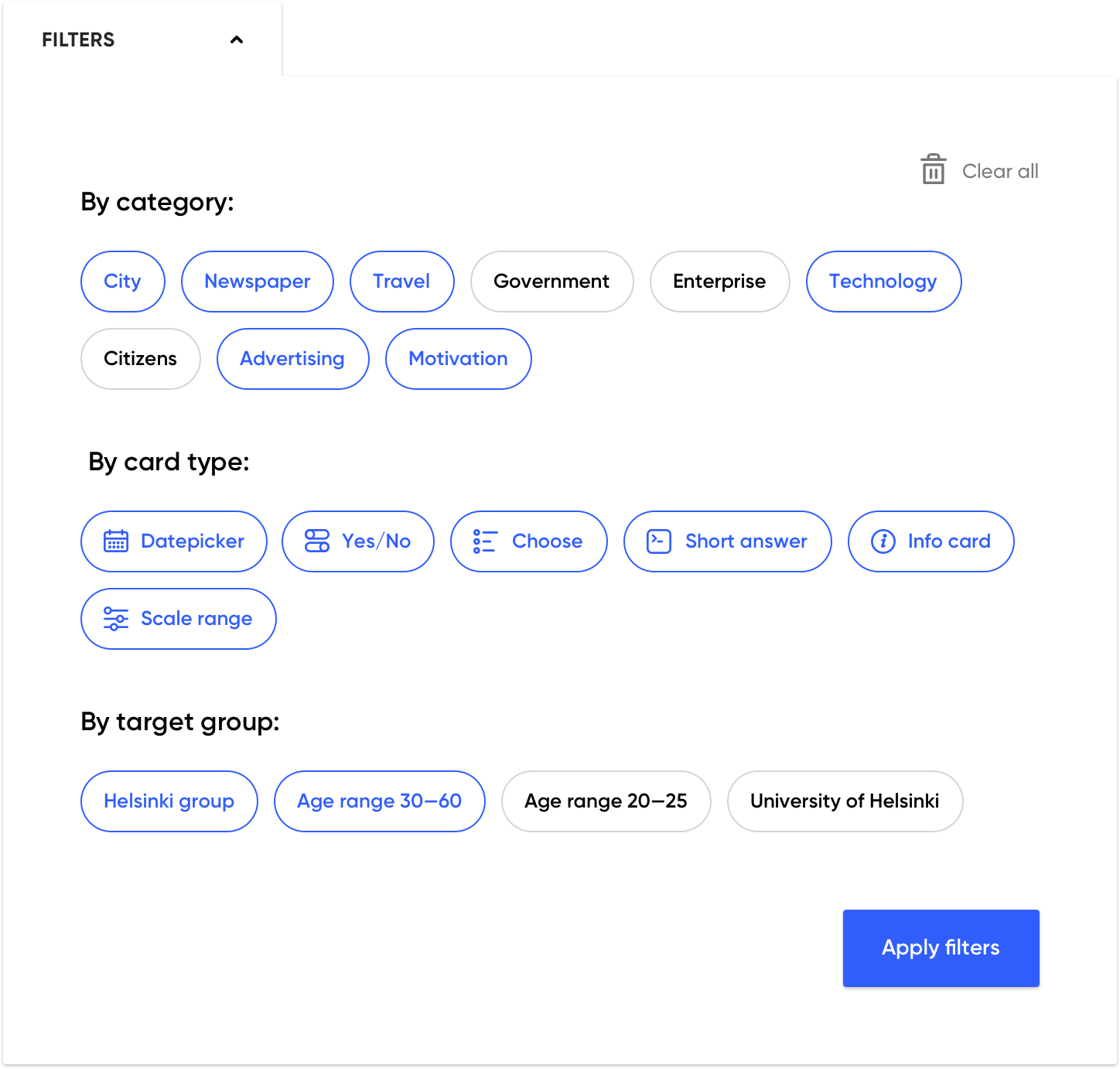
Filter Section
When I have too many filter cards on an App Studio say 10, it can look very busy.
I would suggest to have an expandable section/button that store all the 10 filter cards I have in there.