Best Of
Re: Strugling to create alerts for 2 dimensions
It sounds like it wants at least one numeric field summarized to base the alert on. You could add something like a Summary Number of COUNT(`Domain`) to show how many loss events are happening. Then trigger when summary number is greater than zero.

Re: Warning, not all data is shown on card
It looks like you are using the checkbox filter card. If you put something in the optional group by field, the message will go away. You can put the same field that you have in your values field and just choose an aggregation type of count. This should fix it for you.

Re: Information your IdP may need - Client Customer vs Domo Installed SSL Certificate for SSO?

Re: Information your IdP may need - Client Customer vs Domo Installed SSL Certificate for SSO?
August 2025 New Feature Release
Many of you saw the in product announcements last Friday previewing the upcoming feature release. I know that those messages currently disappear so sharing the one pager with a list of all the new features coming soon. Our current plan is to enable these features for customers on Thursday August 7th. We are excited to see all the amazing things you will do with these new features.

One Click Domo Scripting with Bookmarklets (Favelets)
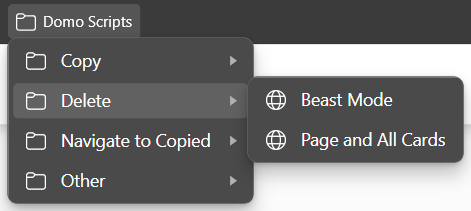
Ever wish you could easily delete a Beast Mode from the Beast Mode Manager? Or click a button to delete all cards on a page before deleting the page? Well now you can with bookmarklets! If you aren't familiar with bookmarklets (sometimes called favelets), they are browser bookmarks that run JavaScript code when clicked. I recently made the discovery that they also support fetch API calls, which unlocked a world of possibilities for Domo-centered scripts. I wanted to share this discovery with the community and hope you will take it to new heights with your own scripts. But, I've developed a few and added them to GitHub to get everyone started:
Best part is, they don't need to be modified before use as they inherit authentication from your browser session and are built to dynamically adjust to the Domo instance you are viewing. In the repository, they are stored as beautified JavaScript. But the repository includes instructions to sync them all to your favorites bar and convert them to bookmarklets (which are minified and URL encoded). Alternatively, you can use something like the Bookmarkletify VS Code extension or an online service to convert them and add them to your bookmarks manually. If you don't have the skills to build your own, comment here or open a discussion on the GitHub repository for scripts you'd like to see and I'll build them. And if you build some cool ones yourself, I hope you'll share them by submitting a pull request to the repository.
 brycec
Re: Can we create a custom thank you message for forms in app studio?
@JasonAltenburg - Getting AI to do something specific in graphics can be very frustrating. Getting nunchuku chains joined or even getting a sword handle to align with the scabbord can be frustrating. To fix these issues, I draw over the top or remove elements and replace them with my own drawn graphics.
Since I do a lot of graphics and art stuff. Combining that with AI, I would come up with something like "Titian" (below)…which should have a brownish orange color theme based on the name.

Larger Grid Recommended pop-up
Raise your hand if you have recently been mildly annoyed by this pop-up appearing in some of your DataFlows. 🤚😬
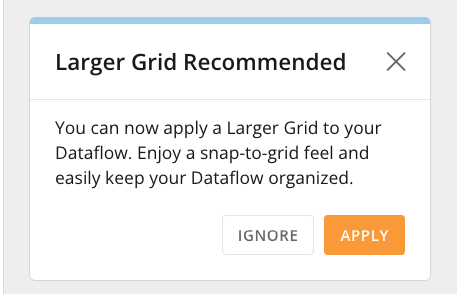
I’ve had a few questions and comments about it lately, so I wanted to address the pop-up elephant in the room. While I do apologize for the mild inconvenience, I promise there IS a good reason for that pop-up.
Based on some feedback regarding the Larger Grid and Grid Lines, we decided to make it easier for users to have the Larger Grid experience by default. In order to accomplish this, we made the following changes:
- All DataFlows created after 04/08/2025 have the Larger Grid on by default (no need to turn it on in the settings)
- For DataFlows created BEFORE 04/09/2025, the OWNER of the DataFlow will receive that pop-up when accessing that DataFlow, giving them a one-click option to opt into Larger Grid for that DataFlow.
- If “APPLY” is selected, Larger Grid will be applied to that DataFlow, and the pop-up will never appear again.
- Upon clicking “APPLY”, all tiles on the canvas will be rendered onto the nearest grid location. You may need to rearrange a few of the tiles to get them in the locations you prefer, but it should remove the need to do extensive rearrangement.
- A default Grid Line option of "Dots" will be applied to the canvas. This can be changed from the right-click menu (more on this in a minute).
- If “IGNORE” is selected, Larger Grid will NOT be applied to that DataFlow, and the pop-up will never appear again.
- The owner can still go into the DataFlow settings and select Larger Grid for that DataFlow if desired at a later date.
- If the “X” is clicked, that is only a temporary dismissal of the dialogue, and the pop-up will appear again the next time the owner accesses the DataFlow.
- I suspect this is what some of you who are annoyed by the pop-up are doing. 🙈
- If “APPLY” is selected, Larger Grid will be applied to that DataFlow, and the pop-up will never appear again.
- We now have a setting you can request at the instance-level to force ALL pre-04/09/2025 DataFlows in your instance onto the Larger Grid. Please reach out to me if you would like this setting applied to your instance.
- If this setting is on, the Larger Grid pop-up will not appear on any DataFlows, as there is no opt-in and they will be forced to the Larger Grid
- Upon opening a DataFlow, the tiles will be rendered onto the nearest grid point automatically (which might lead to needing to move a few tiles, but should be much less work than manually moving everything yourself)
- If your instance was created after 04/08/2025, Larger Grid is your default for all DataFlows.
- Grid Lines are still a per-DataFlow setting, but we made them easier to apply.
- Right-click anywhere on the canvas and choose Grid Lines. That will take you to a menu of the Grid Line types so you can choose which one you want.
- Grid Lines are only available if Larger Grid is enabled for the DataFlow in question
- Eventually, we intend to make Grid Lines a user-level default that will follow the user from DataFlow to DataFlow, but that is a future enhancement.
While I do believe these changes are a net-positive for the experience, I understand there’s a level of annoyance inherent to having a pop-up to contend with in some of your DataFlows. Hopefully you can view the beauty of the Larger Grid and Grid Lines and forgive me for this minor evil I have inflicted. 😌❤️

Re: Multiple progress tracking bars
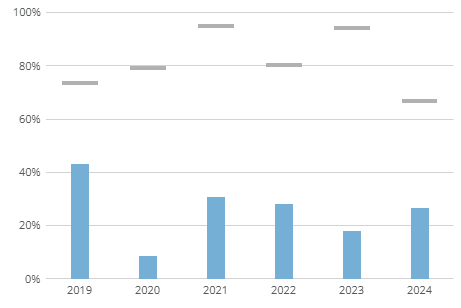
You should be able to make it dynamic with a beast mode. Here is a screenshot where my target differs by year.